> ## Documentation Index
> Fetch the complete documentation index at: https://docs.squarecloud.app/llms.txt
> Use this file to discover all available pages before exploring further.
# Website Hosting
> Professional website hosting with enterprise performance, Cloudflare Premium WAF security, free global CDN and ultra-fast DNS. Automatic deployment, free SSL and support for all modern frameworks.
 ## Why choose Square Cloud?
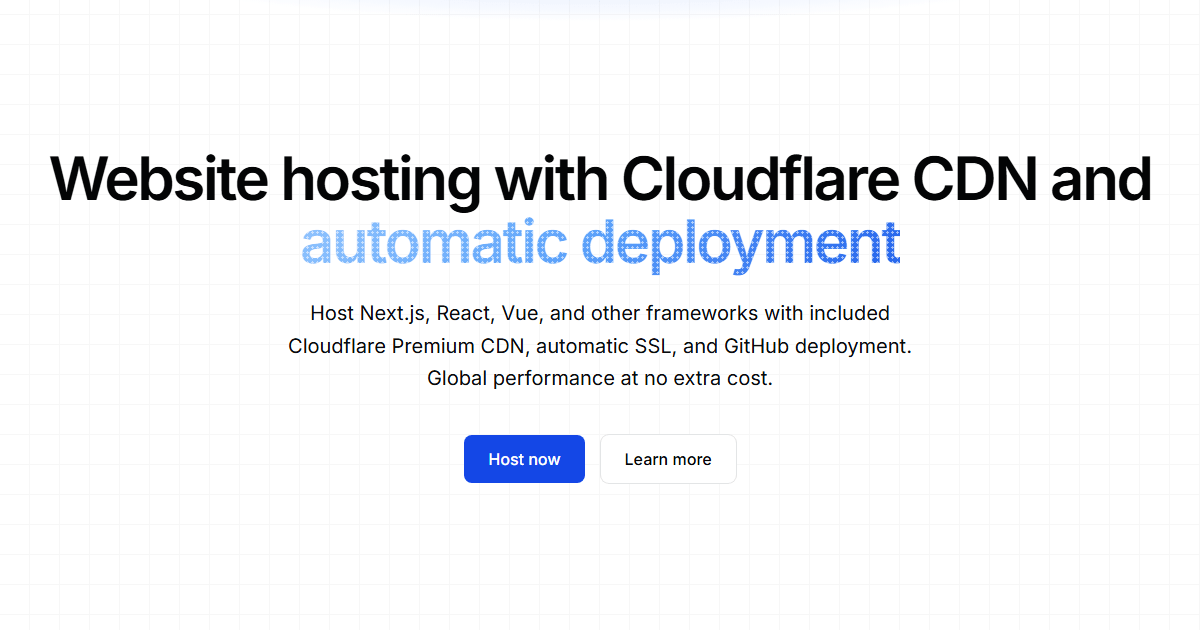
Every site is served from behind Cloudflare's global network, with free TLS, a free CDN and DDoS protection wired in by default — the same production-grade edge whether you deploy a static landing page or a full framework SSR app. You configure a subdomain; we handle certificates, caching and routing.
Every site sits behind the **Cloudflare Premium WAF** with **Square Shield Enterprise** on top — DDoS mitigation, bot filtering and free, auto-renewing TLS included at no extra cost.
**Samsung enterprise NVMe SSDs** and **10Gbps** uplinks, with your app in an isolated container. Paired with a **free global CDN**, static assets are cached at the edge and served close to every visitor.
**Automatic DNS with fast global propagation** — attach a custom domain and Square Cloud manages the records and certificates for you, no manual DNS wrangling.
**One-click restore points**, included free. Recover from a broken deploy in seconds with no data loss and **zero downtime**.
## Supported environments
We offer broad compatibility so you can host your site using your preferred technology.
### Frameworks
We provide native support for the most popular frameworks on the market, ensuring compatibility and performance.
## Why choose Square Cloud?
Every site is served from behind Cloudflare's global network, with free TLS, a free CDN and DDoS protection wired in by default — the same production-grade edge whether you deploy a static landing page or a full framework SSR app. You configure a subdomain; we handle certificates, caching and routing.
Every site sits behind the **Cloudflare Premium WAF** with **Square Shield Enterprise** on top — DDoS mitigation, bot filtering and free, auto-renewing TLS included at no extra cost.
**Samsung enterprise NVMe SSDs** and **10Gbps** uplinks, with your app in an isolated container. Paired with a **free global CDN**, static assets are cached at the edge and served close to every visitor.
**Automatic DNS with fast global propagation** — attach a custom domain and Square Cloud manages the records and certificates for you, no manual DNS wrangling.
**One-click restore points**, included free. Recover from a broken deploy in seconds with no data loss and **zero downtime**.
## Supported environments
We offer broad compatibility so you can host your site using your preferred technology.
### Frameworks
We provide native support for the most popular frameworks on the market, ensuring compatibility and performance.
 Beyond the frameworks shown above, our platform offers **universal support** for virtually any framework or library. Our flexible infrastructure automatically adapts to your project's specific needs, ensuring compatibility with your chosen technology.
### Languages
## Developer ecosystem
Optimize your workflow with our development tools:
* **Square Cloud CLI:** Manage your applications directly from the terminal.
* **VSCode Extension:** Integrate hosting management into your editor.
* **GitHub Webhooks:** Configure automatic deployments based on events.
* **GitHub Actions:** Automate deployments via intelligent workflows.
* **SDKs:** Interact with our API programmatically.
## How to host my website?
The first step to host your site on **Square Cloud** is to create a detailed configuration file. This file is not just a simple text document but a comprehensive guide that defines your application's settings on **Square Cloud**. It serves as an architectural blueprint for your project on the platform.
Once you have your plan, you need to create this file by detailing each setting and filling it out correctly. Details on how to create this file are available [here](https://docs.squarecloud.app/en/getting-started/config-file) with a step-by-step guide.
Remember to include the following fields in your configuration file:
* **SUBDOMAIN:** The subdomain for your site.
Beyond the frameworks shown above, our platform offers **universal support** for virtually any framework or library. Our flexible infrastructure automatically adapts to your project's specific needs, ensuring compatibility with your chosen technology.
### Languages
## Developer ecosystem
Optimize your workflow with our development tools:
* **Square Cloud CLI:** Manage your applications directly from the terminal.
* **VSCode Extension:** Integrate hosting management into your editor.
* **GitHub Webhooks:** Configure automatic deployments based on events.
* **GitHub Actions:** Automate deployments via intelligent workflows.
* **SDKs:** Interact with our API programmatically.
## How to host my website?
The first step to host your site on **Square Cloud** is to create a detailed configuration file. This file is not just a simple text document but a comprehensive guide that defines your application's settings on **Square Cloud**. It serves as an architectural blueprint for your project on the platform.
Once you have your plan, you need to create this file by detailing each setting and filling it out correctly. Details on how to create this file are available [here](https://docs.squarecloud.app/en/getting-started/config-file) with a step-by-step guide.
Remember to include the following fields in your configuration file:
* **SUBDOMAIN:** The subdomain for your site.
Example: `SUBDOMAIN=test` (test.squareweb.app)
* **MEMORY:** The amount of RAM, with a **minimum of 512MB**.
With the configuration file ready, the next step is to prepare your application for upload. This involves placing the application files and the Square Cloud configuration file into a .zip archive.
However, not all files need to be included in this .zip. Files like `node_modules`, `package-lock.json`, `pyproject.toml`, `poetry.lock`, and `__pycache__` are not required, as they can be generated automatically on the server side.
Another crucial aspect is including the dependencies file in the .zip. This file tells the Square Cloud platform which dependencies to install for your project. For a Node.js project, this file is `package.json`, and for a Python project, it’s `requirements.txt`.
These files list the libraries and packages required for your application to function correctly. Keeping these files up to date is crucial to avoid installation errors. Additionally, it’s important to note that native dependencies, such as `node-fetch` in Node.js and `random` in Python, should not be included in these files, as they are built-in libraries.
If you can set a `port` in your code or the `START` parameter, always set it to `port 80`. The only exception is when hosting a Lavalink server—see more [here](https://docs.squarecloud.app/en/tutorials/how-to-create-your-lavalink-server).
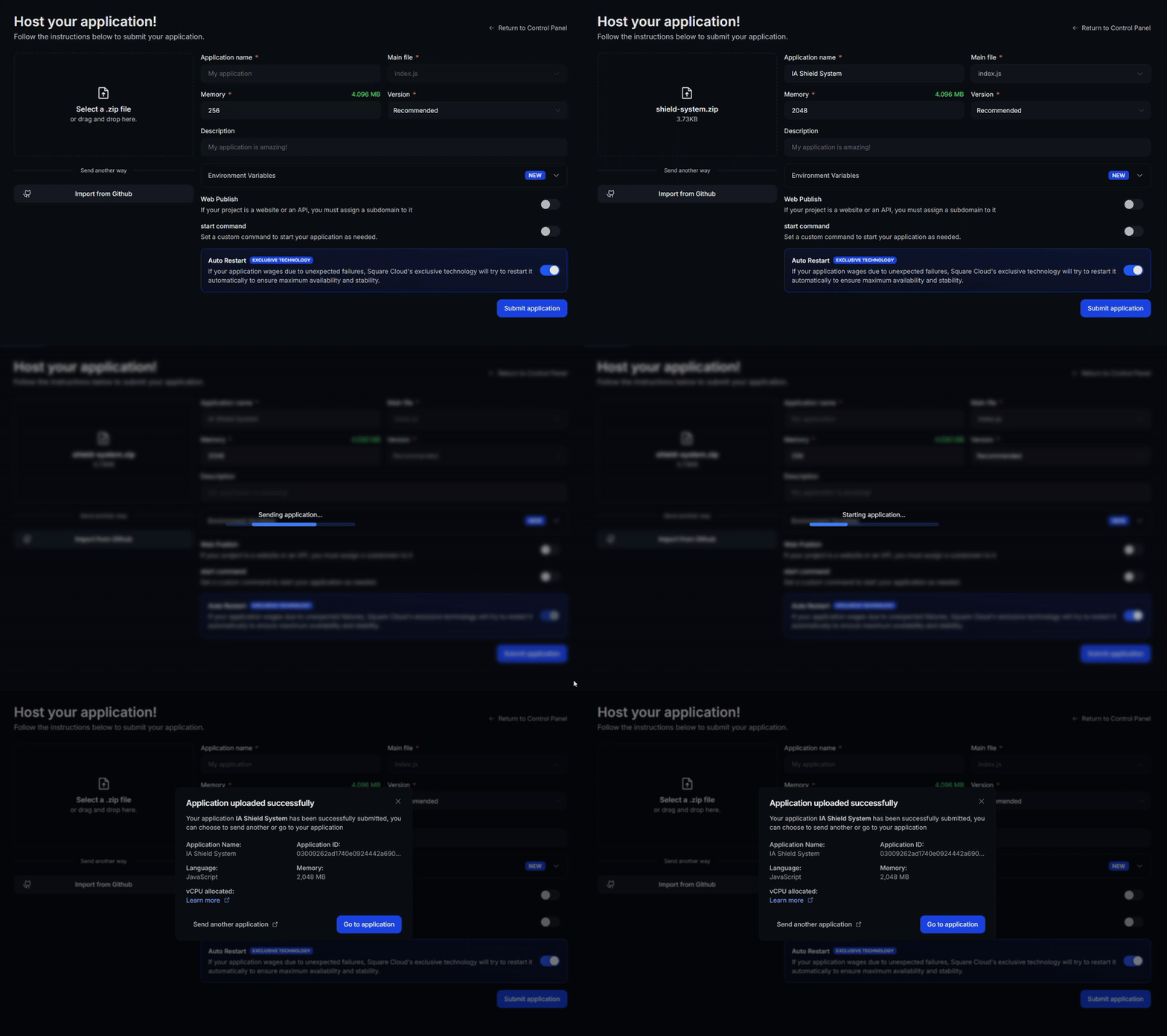
After following all the steps and configuring your project for Square Cloud, it’s time to upload your site. Go to the upload page on the Square Cloud website and upload your .zip file [here](https://squarecloud.app/en/dashboard/new).
The process is straightforward: select your .zip file and click the upload button. Square Cloud will begin the deployment process, installing the necessary dependencies and setting up the environment based on your configuration file.
 ## Frequently asked questions
Website hosting starts on the **Hobby** plan at **R\$12.49/month**, which meets the 512 MB minimum RAM required for websites. See [Plans and Pricing](/en/platform/plans) for the full comparison.
Yes — every web deploy includes a `*.squareweb.app` subdomain at no extra cost, as part of your paid plan. It's ready to use as soon as you set the `SUBDOMAIN` field in your configuration file.
Custom domains are available from the **Standard** plan and up. See [Set Custom Domain](/en/api-reference/endpoint/apps/network/custom) for how to attach one and the required DNS records.
## Frequently asked questions
Website hosting starts on the **Hobby** plan at **R\$12.49/month**, which meets the 512 MB minimum RAM required for websites. See [Plans and Pricing](/en/platform/plans) for the full comparison.
Yes — every web deploy includes a `*.squareweb.app` subdomain at no extra cost, as part of your paid plan. It's ready to use as soon as you set the `SUBDOMAIN` field in your configuration file.
Custom domains are available from the **Standard** plan and up. See [Set Custom Domain](/en/api-reference/endpoint/apps/network/custom) for how to attach one and the required DNS records.