> ## Documentation Index
> Fetch the complete documentation index at: https://docs.squarecloud.app/llms.txt
> Use this file to discover all available pages before exploring further.
# How to Host Slack Bots
> Learn to create and host Slack bots on Square Cloud. Complete tutorial with configuration, deployment, and practical examples in Node.js and Python.
export const RecommendedPlan = ({lang, plan, tier, cpu, appType}) => {
const siteLang = lang === 'pt-br' ? 'pt-br' : 'en';
const url = `https://squarecloud.app/${siteLang}/pay?plan=${plan.toLowerCase()}&tier=${tier}`;
const proUrl = `https://squarecloud.app/${siteLang}/pay?plan=pro`;
const notes = {
'en':
Wondering how much RAM and CPU your plan needs to host {appType}?
Don't worry, we're here to help.
Our {plan} plan offers {tier}GB of RAM and {cpu}vCPU, which should be sufficient for most {appType}.
However, if you are working on a larger project and seeking extra stability, we recommend considering our Pro plan. With additional resources, you can maintain stability even during demand spikes.
To purchase, simply click here.
,
'pt-br':
Está se perguntando quanta RAM e CPU seu plano precisa para hospedar {appType}?
Não se preocupe, estamos aqui para ajudar.
Nosso plano {plan} oferece {tier}GB de RAM e {cpu}vCPU, o que deve ser suficiente para a maioria dos {appType}.
No entanto, se você estiver trabalhando em um projeto maior e precisar de mais estabilidade, recomendamos considerar nosso plano Pro.
Com recursos adicionais, você pode manter a estabilidade mesmo durante picos de demanda.
Para comprar, basta clicar aqui.
,
'es':
¿Te preguntas cuánta RAM y CPU necesita tu plan para alojar {appType}?
No te preocupes, estamos aquí para ayudarte.
Nuestro plan {plan} ofrece {tier}GB de RAM y {cpu}vCPU, lo que debería ser suficiente para la mayoría de {appType}.
Sin embargo, si estás trabajando en un proyecto más grande y buscas mayor estabilidad, te recomendamos considerar nuestro plan Pro.
Con recursos adicionales, puedes mantener la estabilidad incluso durante picos de demanda.
Para comprarlo, simplemente haz clic aquí.
,
'fr':
Vous vous demandez combien de RAM et de CPU votre plan doit offrir pour héberger {appType} ?
Pas d'inquiétude, nous sommes là pour vous aider.
Notre plan {plan} offre {tier} Go de RAM et {cpu} vCPU, ce qui devrait suffire pour la plupart des {appType}.
Cependant, si vous travaillez sur un projet plus important et recherchez une stabilité accrue, nous vous recommandons notre plan Pro.
Avec des ressources supplémentaires, vous conservez la stabilité même lors des pics de demande.
Pour l'acheter, cliquez simplement ici.
,
'de':
Sie fragen sich, wie viel RAM und CPU Ihr Plan zum Hosten von {appType} benötigt?
Keine Sorge, wir helfen Ihnen gerne.
Unser {plan}-Plan bietet {tier} GB RAM und {cpu} vCPU, was für die meisten {appType} ausreichen sollte.
Wenn Sie jedoch an einem größeren Projekt arbeiten und zusätzliche Stabilität benötigen, empfehlen wir unseren Pro-Plan.
Mit zusätzlichen Ressourcen bleibt Ihre Anwendung auch bei Lastspitzen stabil.
Zum Kauf klicken Sie einfach hier.
,
'it':
Ti stai chiedendo quanta RAM e CPU serve al tuo piano per ospitare {appType}?
Non preoccuparti, siamo qui per aiutarti.
Il nostro piano {plan} offre {tier}GB di RAM e {cpu}vCPU, che dovrebbero essere sufficienti per la maggior parte di {appType}.
Tuttavia, se stai lavorando a un progetto più grande e cerchi maggiore stabilità, ti consigliamo il nostro piano Pro.
Con risorse aggiuntive puoi mantenere la stabilità anche durante i picchi di richieste.
Per acquistarlo, fai clic qui.
,
'ja':
{appType}のホスティングに必要なRAMとCPUの容量が気になりますか?
ご安心ください。私たちがサポートします。
{plan}プランは{tier}GBのRAMと{cpu}vCPUを提供しており、ほとんどの{appType}には十分です。
より大規模なプロジェクトでさらなる安定性を求める場合は、Proプランをおすすめします。追加リソースにより、需要のピーク時でも安定性を維持できます。
ご購入はこちらをクリックしてください。
,
'zh':
想知道托管{appType}需要多少 RAM 和 CPU 吗?
别担心,我们来帮您。
我们的 {plan} 套餐提供 {tier}GB RAM 和 {cpu}vCPU,对大多数{appType}来说已经足够。
如果您的项目规模更大、需要更高的稳定性,我们推荐 Pro 套餐。借助额外资源,即使在需求高峰期也能保持稳定。
点击这里即可购买。
};
return notes[lang] || notes['en'];
};
export const appType_0 = "a Slack bot"
## Introduction
To develop and host {appType_0} on Square Cloud, it's essential to follow a structured sequence of configurations and prerequisites. This technical guide will cover the entire process, from initial setup to production deployment.
### Prerequisites
* **Square Cloud Account**: Register through the [signup page](https://squarecloud.app/en/signup) using your email.
* **Active Paid Plan**: Ensures dedicated resources and optimized performance for your application. Check our [available plans](https://squarecloud.app/en/pricing) and choose the most suitable for your needs.
## Creating project
To create a Slack Bot, you will need an account and permissions to create apps on Slack. Create or access your account at [https://slack.com/](https://slack.com/) before following next steps.
### Bot application on Slack
1. Go to the [Slack API - Your Apps](https://api.slack.com/apps) and click "Create New App".
2. Choose "From scratch", give the app a name and select the workspace where you will install it.
3. Note the *Signing Secret* (under "Basic Information") and create a *Bot Token* in the "OAuth & Permissions" section, adding the appropriate scopes for your bot (e.g. `chat:write`, `channels:read`, `commands`, `app_mentions:read`).
**Security:** Never expose the Signing Secret or the Bot Token publicly. Treat them as sensitive credentials.
## Developing project
Use the sections below depending on the language you choose. Both examples demonstrate a bot that responds to mentions or simple commands.
**Node.js Environment Setup**
1. Make sure Node.js is installed.
2. Initialize a project and install dependencies:
```bash Terminal theme={null}
npm init -y
npm install @slack/bolt
```
3. Create an `index.js` file with the following content:
```javascript index.js theme={null}
const { App } = require('@slack/bolt');
const app = new App({
signingSecret: process.env.SLACK_SIGNING_SECRET,
token: process.env.SLACK_BOT_TOKEN,
});
// Responds when mentioned
app.event('app_mention', async ({ event, say }) => {
await say(`<@${event.user}> Thanks for mentioning me!`);
});
// Example slash command
app.command('/hello', async ({ ack, respond }) => {
await ack();
await respond('Hello from Square Cloud!');
});
(async () => {
await app.start(process.env.PORT || 3000);
console.log('⚡️ Slack Bolt app is running!');
})();
```
Note: on Square Cloud, set the environment variables `SLACK_SIGNING_SECRET` and `SLACK_BOT_TOKEN` in the application panel.
**Python Environment Setup**
1. Make sure Python and pip are installed.
2. Install the Bolt for Python library:
```bash Terminal theme={null}
pip install slack_bolt
```
3. Create an `app.py` file with the following content:
```python app.py theme={null}
from slack_bolt import App
import os
app = App(
signing_secret=os.environ.get('SLACK_SIGNING_SECRET'),
token=os.environ.get('SLACK_BOT_TOKEN')
)
@app.event('app_mention')
def handle_mention(event, say):
user = event.get('user')
say(f'<@{user}> Thanks for mention!')
@app.command('/hello')
def hello_command(ack, respond):
ack()
respond('Hello from Square Cloud!')
if __name__ == '__main__':
app.start(port=int(os.environ.get('PORT', 3000)))
```
4. For Python projects, include a `requirements.txt` with:
```txt requirements.txt theme={null}
slack_bolt
```
## Deploying
After preparing your project files, you can now upload them to Square Cloud and host your project.
To do so, create a ZIP file containing all your project files.
### Via dashboard
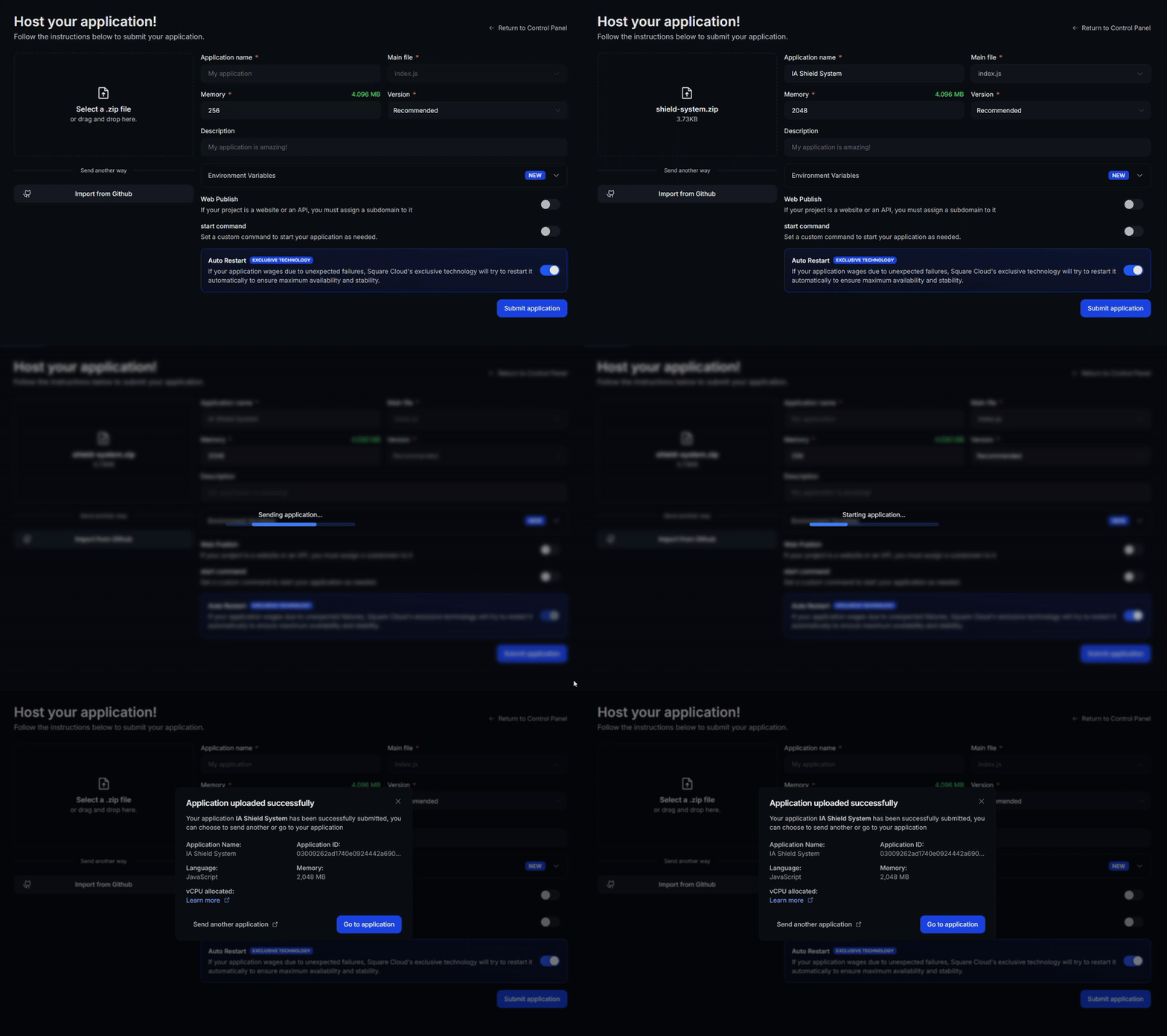
Access the [upload page](https://squarecloud.app/en/dashboard/new) and upload your project zip file.
After uploading your zip, you will need to configure the name, main file or runtime environment and other settings for your project.\
If you are uploading a web project, make sure to select "Web Publication" and set a subdomain to your project.
Finally, click on the "Deploy" button to host your project on Square Cloud.\
After deployment, you can monitor your project's status and logs from the dashboard.
 Your first deploy usually takes less than a minute. In the [dashboard](https://squarecloud.app/en/dashboard), wait for your application status to show as running and check the logs for any startup errors.\
If you deployed a website or API, open `https://.squareweb.app` in your browser — you should see your application responding. If you deployed a bot, send it a command to confirm it is online.
App not starting? See the [Troubleshooting guide](/en/platform/troubleshooting/app-wont-start) for the most common causes and fixes.
### Via CLI
To use this method, you need to create a config file named `squarecloud.app` in the root directory of your project. This file will contain the necessary configuration for your project.
Learn how to create the `squarecloud.app` configuration file that defines your application's environment.
First, you need to have the CLI installed in your environment. If you don't have it yet, run the following command in your terminal:
```
npm install -g @squarecloud/cli
```
If you already have it, we recommend updating it. To do this, run the following command in your terminal:
```bash theme={null}
squarecloud update
```
```bash theme={null}
curl -fsSL https://cli.squarecloud.app/install | bash
```
Now, to authenticate and use other CLI commands, you will find your authorization key [here](https://squarecloud.app/en/account/security) by clicking on "Request API Key". After obtaining your authorization key, run the following command:
```bash theme={null}
squarecloud auth login
```
Finally, to deploy your application to Square Cloud using the CLI, you need to run the following command:
```bash theme={null}
squarecloud upload
```
Or if you created the zip manually, you can use:
```bash theme={null}
squarecloud upload --file
```
Your first deploy usually takes less than a minute. Check your application status and logs directly from the terminal:
```bash theme={null}
squarecloud app status
squarecloud app logs
```
If you deployed a website or API, open `https://.squareweb.app` in your browser — you should see your application responding. If you deployed a bot, send it a command to confirm it is online.
App not starting? See the [Troubleshooting guide](/en/platform/troubleshooting/app-wont-start) for the most common causes and fixes.
## Testing the Bot
1. In the Slack App panel, under "OAuth & Permissions", install the app to the workspace.
2. If the bot exposes endpoints (for events or commands), configure the Request URL in "Event Subscriptions" and "Slash Commands" to point to your application's public URL (Square Cloud provides the domain after deployment).
3. Test mentions in a channel or the `/hello` command to validate responses.
Example install link (replace the client\_id):
```txt theme={null}
https://slack.com/oauth/v2/authorize?client_id=000000000000.000000000000&scope=commands,chat:write,app_mentions:read
```
## Additional Resources
For further reading, check the official Slack documentation:
* Bolt for JavaScript: [https://docs.slack.dev/tools/bolt-js/](https://docs.slack.dev/tools/bolt-js/)
* Bolt for Python: [https://docs.slack.dev/tools/bolt-python/](https://docs.slack.dev/tools/bolt-python/)
## Contact us
If you continue facing **technical difficulties**, our **specialized support team** is available to assist you. [**Contact us**](https://squarecloud.app/en/support) and we'll be happy to help you resolve any issue — support quality is a big part of why developers rate Square Cloud [**4.9/5 across 402 reviews**](https://www.trustpilot.com/review/squarecloud.app) on Google and Trustpilot.
Your first deploy usually takes less than a minute. In the [dashboard](https://squarecloud.app/en/dashboard), wait for your application status to show as running and check the logs for any startup errors.\
If you deployed a website or API, open `https://.squareweb.app` in your browser — you should see your application responding. If you deployed a bot, send it a command to confirm it is online.
App not starting? See the [Troubleshooting guide](/en/platform/troubleshooting/app-wont-start) for the most common causes and fixes.
### Via CLI
To use this method, you need to create a config file named `squarecloud.app` in the root directory of your project. This file will contain the necessary configuration for your project.
Learn how to create the `squarecloud.app` configuration file that defines your application's environment.
First, you need to have the CLI installed in your environment. If you don't have it yet, run the following command in your terminal:
```
npm install -g @squarecloud/cli
```
If you already have it, we recommend updating it. To do this, run the following command in your terminal:
```bash theme={null}
squarecloud update
```
```bash theme={null}
curl -fsSL https://cli.squarecloud.app/install | bash
```
Now, to authenticate and use other CLI commands, you will find your authorization key [here](https://squarecloud.app/en/account/security) by clicking on "Request API Key". After obtaining your authorization key, run the following command:
```bash theme={null}
squarecloud auth login
```
Finally, to deploy your application to Square Cloud using the CLI, you need to run the following command:
```bash theme={null}
squarecloud upload
```
Or if you created the zip manually, you can use:
```bash theme={null}
squarecloud upload --file
```
Your first deploy usually takes less than a minute. Check your application status and logs directly from the terminal:
```bash theme={null}
squarecloud app status
squarecloud app logs
```
If you deployed a website or API, open `https://.squareweb.app` in your browser — you should see your application responding. If you deployed a bot, send it a command to confirm it is online.
App not starting? See the [Troubleshooting guide](/en/platform/troubleshooting/app-wont-start) for the most common causes and fixes.
## Testing the Bot
1. In the Slack App panel, under "OAuth & Permissions", install the app to the workspace.
2. If the bot exposes endpoints (for events or commands), configure the Request URL in "Event Subscriptions" and "Slash Commands" to point to your application's public URL (Square Cloud provides the domain after deployment).
3. Test mentions in a channel or the `/hello` command to validate responses.
Example install link (replace the client\_id):
```txt theme={null}
https://slack.com/oauth/v2/authorize?client_id=000000000000.000000000000&scope=commands,chat:write,app_mentions:read
```
## Additional Resources
For further reading, check the official Slack documentation:
* Bolt for JavaScript: [https://docs.slack.dev/tools/bolt-js/](https://docs.slack.dev/tools/bolt-js/)
* Bolt for Python: [https://docs.slack.dev/tools/bolt-python/](https://docs.slack.dev/tools/bolt-python/)
## Contact us
If you continue facing **technical difficulties**, our **specialized support team** is available to assist you. [**Contact us**](https://squarecloud.app/en/support) and we'll be happy to help you resolve any issue — support quality is a big part of why developers rate Square Cloud [**4.9/5 across 402 reviews**](https://www.trustpilot.com/review/squarecloud.app) on Google and Trustpilot.