

Deploying
Upload a new application
RunSquare Cloud: Upload New Application from the command palette, the upload icon in the side bar’s title bar, or Upload your first application on an empty account.
1
Pick a folder
Your open workspace folders come first; Browse… picks any other folder.
2
Check the config
The folder must contain a
squarecloud.app or squarecloud.config file. Without one, nothing is uploaded and the error links to the config file guide.3
Confirm
A dialog asks before anything leaves your machine.
4
Zip and upload
The folder is zipped with your ignore rules applied, with a live file count, and you can cancel until the upload starts. Zips are limited to 100 MB.
SUBDOMAIN, the application answers at https://<subdomain>.squareweb.app once it starts.
Commit changes to an existing application
Open an application’s action menu (right-click its card, or use its ⋯ button) and pick Commit. Choose whether to restart the application afterwards, then pick one or more files, or a folder. A folder is zipped with the same ignore rules and lands inside a folder of the same name in the application.Ignore rules
The extension and the Square Cloud CLI read the samesquarecloud.ignore file, with the same .gitignore syntax and the same defaults: node_modules, .git, .github, .vscode and the lockfiles are always left out unless a ! rule brings them back. Your .gitignore is not read, since it often lists files the application needs to run, like .env.
Applications
The side bar opens with your account: name, plan and a RAM meter for the plan’s memory. Below it, every application is a card with a live status badge (Online, Offline, Checking while the status loads, or amber while an action you clicked is on its way), its RAM and, while it runs, its CPU. Click a card to see its ID, memory, runtime, cluster, domain and when it started.- Pointing at a card shows start or stop, restart and logs. The star next to the name marks a favorite and keeps it at the top.
- Right-click a card, or use its ⋯ button, for the full action menu, grouped by purpose, with destructive actions last.
- Past 10 applications, the list shows 10 at a time with previous and next arrows, and a filter by name, domain or ID finds any of them.
- Actions that can’t work are not offered: edge tools only appear for applications with a domain, and metrics only for applications with 512 MB or more.
Databases
The Databases section lists your managed databases with engine and memory. Right-click one, or use its ⋯ button, for Start, Stop, Download TLS certificate and Delete (type the name to confirm). The certificate is saved as a.pem file readable only by you.
Create database is in the side bar’s ... menu, the command palette and the empty Databases section. Give it a name, an engine (mongo, mysql, redis or postgres), its memory in MB and a version. As soon as the database exists, its connection URL, password included, is copied to your clipboard, with a Copy password button.
Workspaces
The Workspaces section shows every workspace you own or joined, with its member and application counts. Right-click one, or use its ⋯ button, to Leave or Delete it (only the owner can delete). Create workspace is in the side bar’s... menu, the command palette and the empty Workspaces section.
To join someone else’s workspace, use Copy My Invite Code in the side bar’s ... menu. It copies your personal invite code: send it to the workspace owner, who uses it to add you.
Status and problems
- Platform health sits in the footer of the side bar. When Square Cloud reports trouble, a banner at the top shows its message and a link to the status page.
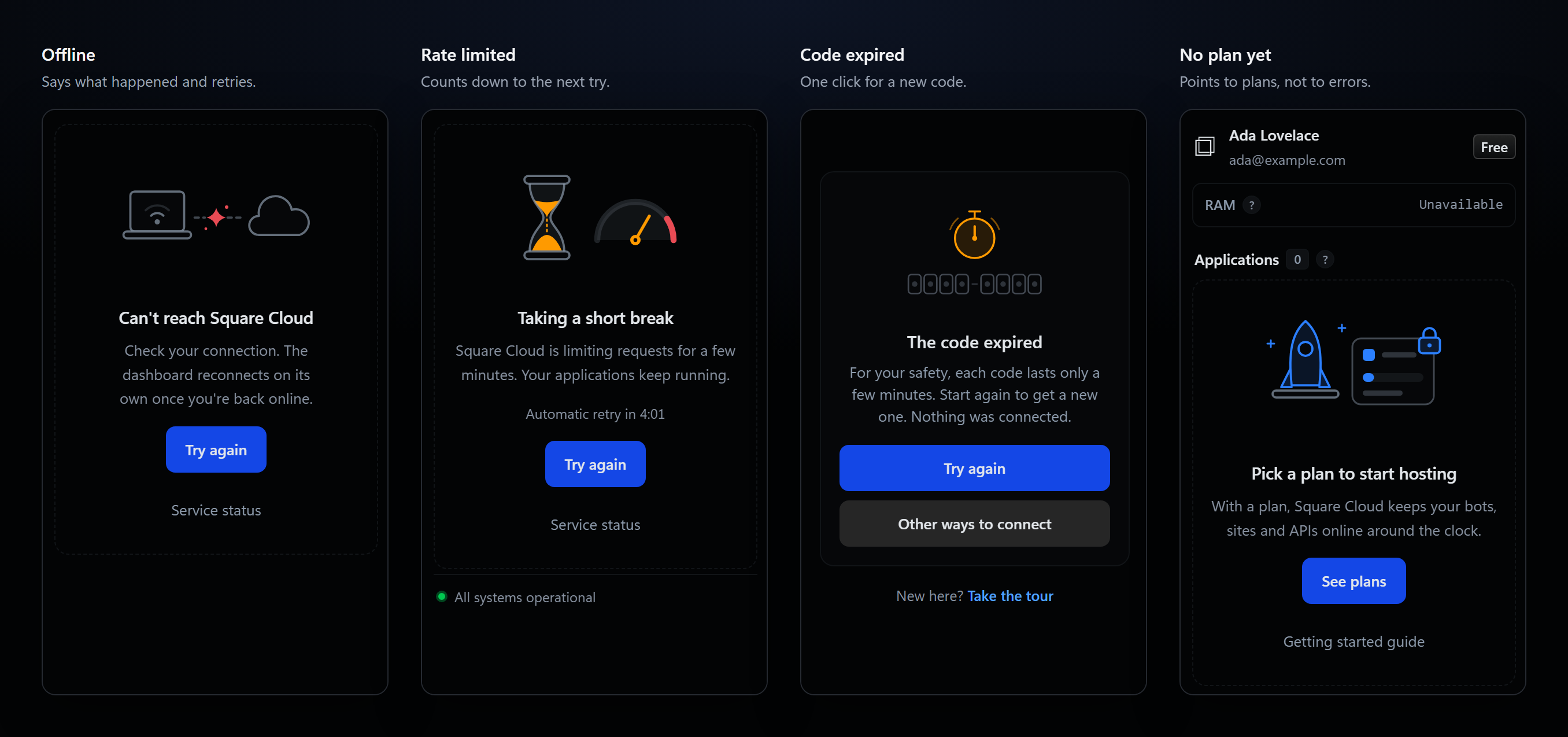
- Every problem has its own illustrated state: no connection, a rate-limit pause with a countdown to the automatic retry, maintenance, an authorization that needs connecting again, an unexpected error, and an account without a plan. Each one offers the button that helps: Try again, Connect account, Service status or See plans.
- If a refresh fails while your data is on screen, a small banner says so and keeps the last data it loaded.
- The status bar item shows whether an account is connected, how many applications are online, and whether Square Cloud is offline, pausing requests or degraded. Hover it for the account, plan and service status; click it to refresh.
Config file IntelliSense
squarecloud.app and squarecloud.config get full editor support, with nothing else to install.
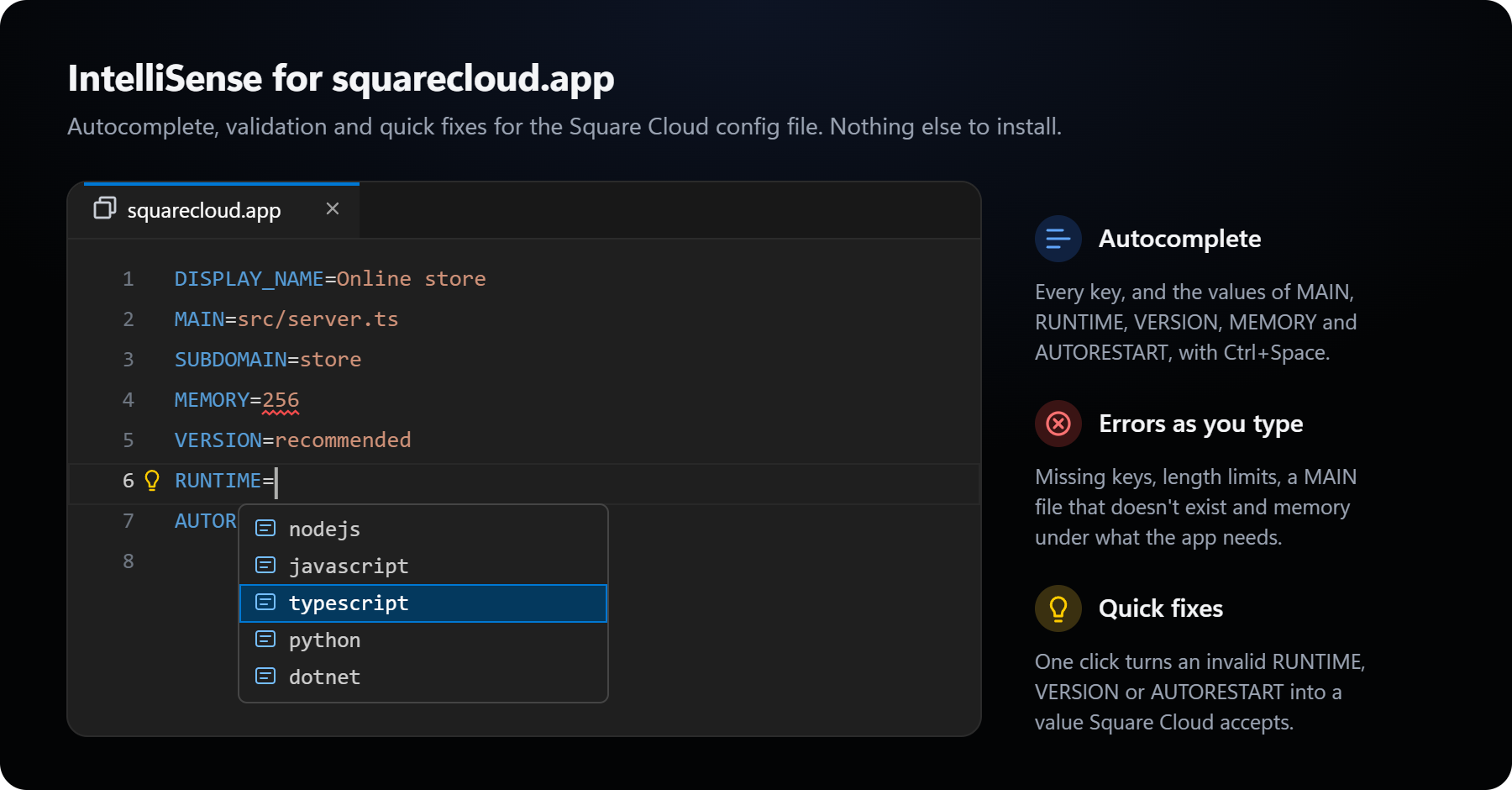
- Validation as you type: missing required keys and duplicates, value lengths, a
MAINfile that doesn’t exist, aMEMORYbelow the minimum or above what your plan has free, invalidSUBDOMAINcharacters, and unknownRUNTIMEorVERSIONvalues are underlined as errors. - Autocomplete: every key on an empty line, and after
=the source files forMAIN, the runtimes forRUNTIME,recommendedandlatestforVERSION,trueandfalseforAUTORESTART, and memory sizes forMEMORY. - Quick fixes: the light bulb on an
AUTORESTART,VERSIONorRUNTIMEline sets a valid value in one click. - Highlighting and icons for
squarecloud.app,squarecloud.configandsquarecloud.ignore.